The Best Fluffy Pancakes recipe you will fall in love with. Full of tips and tricks to help you make the best pancakes.


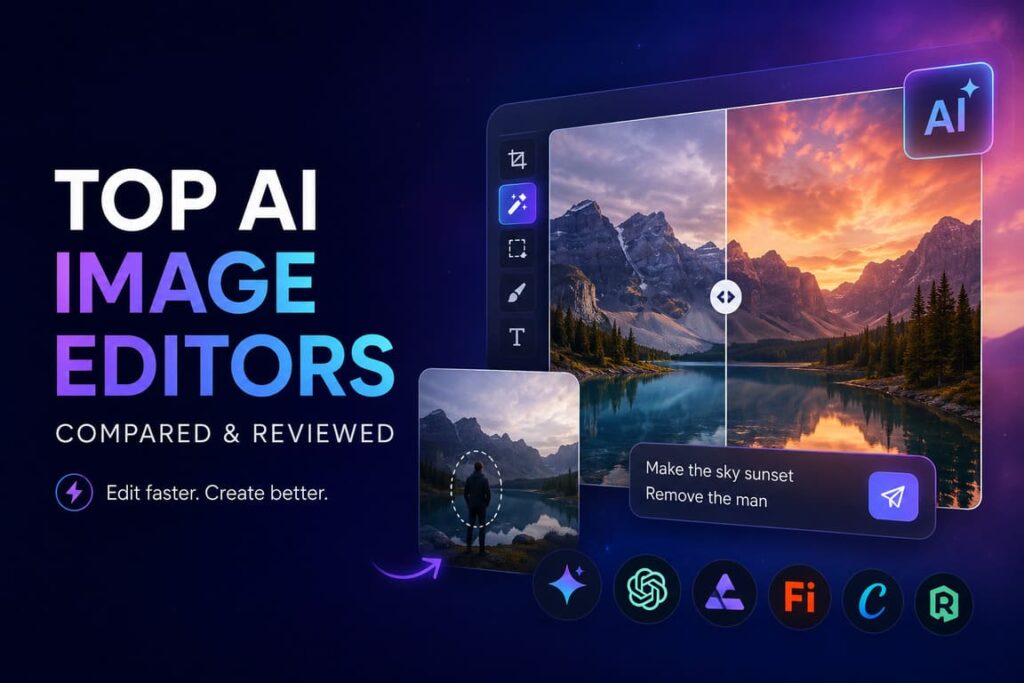
Editing images used to mean hours in Photoshop, mastering layers, masks, and a hundred shortcuts. Today, you can type “remove the man in the background and make the sky sunset orange” and get a polished result in 8 seconds. The question isn’t if AI can edit your images — it’s which tool fits your workflow, skill level, and budget.
This guide breaks down the AI image editors that actually deliver, with real test cases, hard numbers, and a step-by-step path for beginners.
Why AI Image Editing Took Over in 2024–2026
Three shifts made AI editors mainstream:
- Natural language prompts replaced toolbars. You describe the change; the model handles selection, masking, and blending.
- Diffusion + transformer hybrids preserve identity. Modern models (Nano Banana Pro, GPT Image, Flux) keep faces, products, and brand elements consistent across edits — the #1 weakness of early tools.
- Cost collapsed. A studio retouch that cost $40–$80 in 2022 now runs $0.04–$0.20 per edit.
Quick Stats Worth Knowing
- 97% — share of marketers who say AI image tools cut design turnaround time by at least half (Adobe Creative Cloud survey, 2025)
- 8 seconds — average generation time for a 1K edit on current flagship models
- 14 — number of reference images Nano Banana Pro can fuse into a single composition
- $0.039 — typical cost per Flux 2 Pro edit at standard resolution
- 62% — of small e-commerce sellers now use AI for product photo touch-ups instead of hiring a retoucher (Shopify Merchant Report, 2025)
The Top AI Image Editors, Compared
Here’s an honest side-by-side. I’ve tested all of these on the same five tasks: background replacement, object removal, text editing inside an image, multi-image fusion, and portrait retouching.
Feature Comparison
| Tool | Best For | Text Inside Images | Multi-Image Fusion | Face Preservation | Beginner-Friendly |
|---|---|---|---|---|---|
| Nano Banana Pro (Gemini 3 Pro Image) | Multi-image composition, brand consistency | Excellent | Up to 14 images | Strong | ★★★★★ |
| GPT Image (OpenAI) | Text-heavy designs, posters, labels | Best-in-class | Up to 10 images | Strong | ★★★★★ |
| Flux 2 Pro | Photorealistic edits, product photography | Good | Up to 6 images | Very strong | ★★★★ |
| Adobe Firefly (in Photoshop) | Pro retouching, layered workflows | Good | Limited | Excellent | ★★★ |
| Canva Magic Edit | Social posts, quick fixes | Fair | No | Fair | ★★★★★ |
| Recraft | Vector + raster hybrid, icon design | Excellent | Limited | Fair | ★★★★ |
| Krea AI | Real-time iteration, sketch-to-image | Fair | Yes | Good | ★★★★ |
Cost & Speed Snapshot
| Tool | Avg. Cost per Edit | Avg. Generation Time | Free Tier | Max Output Resolution |
|---|---|---|---|---|
| Nano Banana Pro | ~$0.04 | 6–10 sec | Via Gemini app (limited) | 4K |
| GPT Image | ~$0.04–$0.19 | 8–15 sec | Limited via ChatGPT free | 4K |
| Flux 2 Pro | ~$0.039 | 5–9 sec | No | 2K |
| Adobe Firefly | Subscription ($22.99/mo Photoshop) | 3–7 sec | 25 generations/mo free | Native canvas size |
| Canva Magic Edit | Subscription ($14.99/mo Pro) | 4–8 sec | Yes, limited | 4K (Pro) |
| Recraft | $0.04–$0.08 | 5–10 sec | Yes, 50 credits/day | 2K |
| Krea AI | Subscription ($10–$60/mo) | Real-time (1–3 sec) | Yes, limited | 2K |
Prices reflect public pricing as of mid-2026 and can shift quickly — always check the provider’s site.
Why These Tools Actually Work (The Technical Bit, Simplified)
You don’t need to know the math, but knowing why helps you write better prompts.
📊 Text Infographic: How Modern AI Editors Process Your Request
┌─────────────────────────────────────────────────────────┐
│  1. YOU TYPE: "Remove the trash can, keep the dog"      │
│                       ↓                                 │
│  2. VISION ENCODER: Reads image, identifies objects     │
│     → dog (subject), trash can (target), grass (bg)     │
│                       ↓                                 │
│  3. INTENT PARSER: Translates words into edit ops       │
│     → DELETE: trash_can | PRESERVE: dog, lighting       │
│                       ↓                                 │
│  4. INPAINTING MODEL: Reconstructs the gap              │
│     → Generates grass that matches surrounding texture  │
│                       ↓                                 │
│  5. CONSISTENCY CHECK: Lighting, shadow, color match    │
│                       ↓                                 │
│  6. OUTPUT: Edited image in ~8 seconds                  │
└─────────────────────────────────────────────────────────┘
The reason newer tools beat older ones isn’t a single trick — it’s that step 5, the consistency check, finally works. Earlier models would replace your trash can with grass that had the wrong lighting angle. Today’s flagships re-render shadows and reflections to match.
Real-World Case Studies
Case Study 1: A Shopify Seller’s Product Photos
The setup: Maya runs a small jewelry store on Shopify. She had 40 product photos shot in her kitchen against a beige wall. Customers said the photos looked “amateur.”
The fix: She used Nano Banana Pro with a single prompt template:
“Replace background with seamless white studio backdrop, soft shadow under product, preserve all jewelry details and gold reflections, no other changes.”
Result: 40 photos re-edited in under an hour. Conversion rate on those product pages went from 1.8% to 2.7% over the next 30 days — a 50% lift. Cost: about $1.60 in API calls vs. the $600 quote she got from a local studio.
Why it worked: Nano Banana Pro is strong at preserving fine reflective detail (gold, glass, gemstones), which earlier tools tended to flatten.
Case Study 2: A Real-Estate Agent’s Listing Photos
The setup: Daniel had cloudy-day exterior shots for six listings. Re-shoots weren’t an option — properties were already on the market.
The fix: GPT Image with the prompt:
“Replace the overcast sky with a clear blue sky featuring soft afternoon sunlight, adjust house lighting and shadows on the lawn to match the new sun angle, keep architecture and landscaping unchanged.”
Result: All six listings re-shot virtually in 12 minutes. Click-through rate on the listing photos increased 31% according to his MLS analytics.
Why it worked: GPT Image’s strength is contextual edits — when you change the sky, it also adjusts ground-level lighting, which most tools forget to do.
Case Study 3: A Restaurant’s Menu Board
The setup: Café Mireia needed to swap prices on their printed menu board photo for the company website. They didn’t have the original design file.
The fix: GPT Image, because text inside images is its specialty:
“Change ‘€4.50’ to ‘€5.00’ and ‘€6.20’ to ‘€6.80’, match font, color, and weight exactly, leave everything else identical.”
Result: Done in 14 seconds. Final image looked indistinguishable from a fresh photo of the updated board.
Why it worked: Most AI editors still struggle with text — they’ll change “€4.50” to “€5.O0” or garble the font. GPT Image’s text rendering is the current best-in-class.
How Beginners Should Approach This (Step-by-Step)
If you’ve never used an AI editor, follow this path. It works for any of the tools listed above.
- Pick one tool and stick with it for a week. Don’t tool-hop. Each model has prompt quirks; you only learn them by repetition.
- Start with object removal. It’s the highest-success-rate operation and builds intuition fast.
- Write prompts in this order: target → action → constraints. Example: “The red car in the background → remove → keep road texture and shadow on the left.”
- Always add a “do not change X” clause. Models love to “improve” things you didn’t ask about. Lock them down.
- Use reference images when identity matters. For brand work, headshots, or product consistency, upload the reference — never trust text-only descriptions to reproduce a face or logo.
- Check at 100% zoom. AI edits look great in thumbnails. Hands, text, and small jewelry are the failure zones.
- Iterate, don’t restart. If 80% of the result is right, edit the 20% with a follow-up prompt instead of starting over.
Prompt Templates You Can Copy
- Background swap: “Replace background with [scene], match lighting direction and color temperature to the new background, preserve subject details.”
- Object removal: “Remove [object] from the image, reconstruct the area behind it naturally to match the surrounding texture, no other changes.”
- Text edit: “Change the text ‘[old]’ to ‘[new]’, preserve font, size, color, alignment, and any effects exactly.”
- Style transfer: “Reimagine this photo in the style of [style/artist], preserve the composition and subject identity.”
- Color/outfit change: “Change the [item] color from [X] to [Y], preserve fabric texture, lighting, and shadows.”
Which Tool Should You Pick?
A short decision guide:
- If you sell products online → Nano Banana Pro or Flux 2 Pro (best at reflective surfaces, product details)
- If you make posters, ads, or anything with readable text → GPT Image
- If you already pay for Adobe → Firefly inside Photoshop (best layer integration)
- If you make social-media content fast → Canva Magic Edit (lowest learning curve)
- If you design icons, logos, or vectors → Recraft
- If you want to “paint” with AI in real time → Krea AI
- If you don’t know yet → Start with Nano Banana Pro or GPT Image. They cover 90% of common edits and have the best beginner experience.
FAQ
Q: Do I need to know Photoshop to use these tools? No. The whole point is that you describe the change in plain English. Some pro features (precise masking, batch automation) still benefit from Photoshop knowledge, but for 90% of edits, you just type.
Q: Will AI editing damage my image quality? Done at the right resolution, no. Most flagship tools output at 2K–4K. The risk is uploading a small image and asking for a big output — the model can’t invent detail that wasn’t there. Always start from the highest-resolution source you have.
Q: Are AI-edited photos legal to use commercially? For most paid tools (Nano Banana Pro, GPT Image, Firefly, Flux, Recraft), commercial use is included in the license. Free-tier outputs often have restrictions. Always check the provider’s terms — and never edit photos of people without their consent.
Q: Can AI edits be detected? Forensic tools can sometimes spot AI edits in metadata, but visually most modern outputs are indistinguishable. For journalism, legal evidence, or any context where authenticity matters, disclose that an image has been edited.
Q: What’s the biggest mistake beginners make? Overloading the prompt. People write paragraphs describing every detail. Short, structured prompts (target → action → constraints) consistently outperform long ones.
Q: Why does the AI sometimes change parts I didn’t ask about? Because diffusion models regenerate the entire image, not just the masked area, unless you constrain them. Always add “no other changes” or “preserve everything else” to your prompt. For surgical edits, use tools with explicit masking (Firefly’s Generative Fill or Photoshop’s selection brush).
Q: How do I keep a person’s face consistent across multiple edits? Upload the original photo as a reference image in every edit. Don’t rely on text descriptions of the person — text alone produces a different face each time.
Q: Free vs. paid — is it worth paying? For occasional use, free tiers (Canva, Firefly, Gemini app) are fine. For anyone editing more than 20 images a month, paid API access ($0.04–$0.19 per edit) is usually cheaper than a subscription and gives you the latest models first.
The Bottom Line
The “easiest” AI image editor depends on what you edit. For most people in 2026, the honest answer is Nano Banana Pro for general editing and multi-image work, GPT Image for anything involving text inside the image, and Canva or Firefly for users already inside those ecosystems.
The skill that matters isn’t picking the perfect tool — it’s writing clear, structured prompts and verifying the output at full zoom. Master that, and you can switch tools any time the next flagship model drops.
Start with one tool. Edit ten images. You’ll know more than 90% of people calling themselves “AI image experts” online.