The Best Fluffy Pancakes recipe you will fall in love with. Full of tips and tricks to help you make the best pancakes.



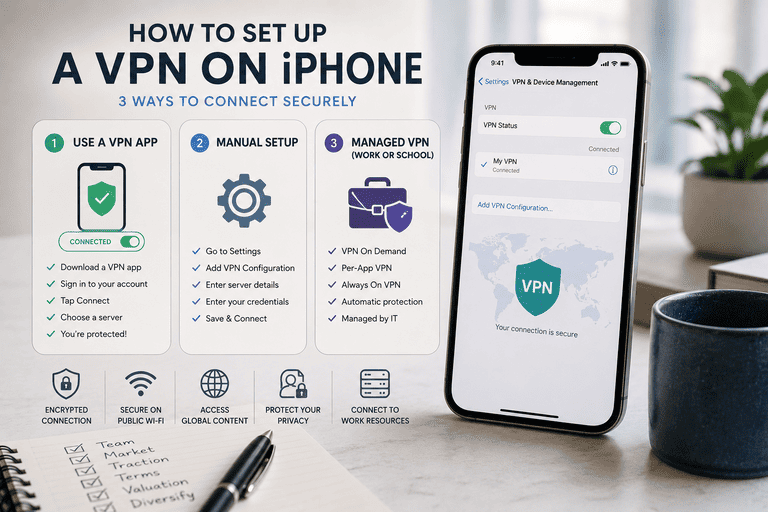
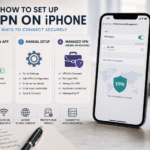
If you want the easiest way to use a VPN on an iPhone, install your VPN provider’s iOS app, sign in, and tap Connect. That is the fastest option for most people. Apple also supports built-in VPN configurations such as IKEv2, IPsec, and L2TP over IPsec, while many SSL-based corporate VPNs are typically handled through the provider’s own app.
A VPN can help protect your traffic on public Wi‑Fi, reduce some forms of tracking, and make it easier to connect to work resources or region-specific services while traveling. For most everyday users, the app-based method is best because it is faster to set up, easier to maintain, and less likely to break after an iOS update or password change.
Quick stats
According to Security.org’s 2025 consumer report, 32% of U.S. adults currently use a VPN. Among VPN users, 37% use one for safer public Wi‑Fi, 32% use one to reduce tracking by search engines or social platforms, 23% use one to access media content not available in their country, and 28% still rely on free VPNs. The same report also notes that VPN adoption is down from recent years, suggesting that use is becoming more selective and purpose-driven.
When to use each setup method
Use a VPN app if you want the fastest setup and the fewest technical steps. This is the best option for most people because the provider handles configuration, updates, and protocol choices inside the app.
Use manual setup if your employer, school, or IT administrator gave you connection details such as a server address, remote ID, username, certificate, or shared secret. Manual setup is also common for self-hosted VPN servers and older enterprise environments.
Use automatic reconnection or managed VPN features if you often join public Wi‑Fi or carry a work-managed iPhone. Apple supports VPN On Demand, per-app VPN, and Always On VPN in managed deployments, which can reconnect automatically or force selected traffic through a secure tunnel without requiring the user to remember to turn it on.
Method 1: Connect with a VPN app
- Open the App Store.
- Search for your VPN provider.
- Download and install the app.
- Open the app and sign in.
- Allow the app to add a VPN configuration when your iPhone asks.
- Tap Connect.
- Choose a nearby server for better speed, or choose a specific country if you need a location in that region. Source
The first time you connect, iOS will usually ask permission to install a VPN profile. This is normal. Without approving that profile, the app cannot create the secure tunnel it needs to route traffic through the VPN server.
For day-to-day use, choose the closest server unless you specifically need a different country. A nearby server usually gives you lower latency and better speed, while a server in another country makes more sense for travel, work-region access, or location-specific content.
Best practice for server selection
If speed matters most, connect to a server that is geographically close to you. If your goal is to access content or services available only in a different country, choose a server in that country instead. In other words, use the nearest server for performance and a country-specific server only when location matters.
Method 2: Manual VPN setup on iPhone
Use this method only if your company, school, or VPN provider gives you the connection details.
- Open Settings on your iPhone.
- Go to General > VPN & Device Management > VPN.
- Tap Add VPN Configuration.
- Select the protocol your provider gave you, such as IKEv2, IPsec, or L2TP.
- Enter the server address, remote ID, local ID, username, password, certificate, or shared secret if required.
- Save the configuration and connect.
Apple’s documentation shows support for IKEv2, IPsec, and L2TP in managed VPN settings, as well as third-party connection types that depend on a companion app. That means the exact fields you see can vary depending on your VPN type and the configuration supplied by your provider or IT administrator.
For manual setups, IKEv2 is commonly preferred on Apple devices because it is widely used, reliable, and supports features such as mobility and faster reconnection. Apple’s deployment documentation also notes support for capabilities like split tunneling, server redirect, and MOBIKE in IKEv2 environments.
What the manual setup fields usually mean
The server field is the hostname or IP address of the VPN gateway you are connecting to. The remote ID usually identifies the VPN server, while the local ID may identify your device or certificate identity if your organization requires it. Authentication can be done with a username and password, a shared secret, a certificate, or a combination of those, depending on the VPN type.
If any one of these values is wrong, the VPN may fail to connect even though the profile saves correctly. That is why work and school VPNs often need exact values from IT rather than guesswork.
Method 3: Managed work or school VPN on iPhone
On organization-managed iPhones, Apple supports more advanced VPN behavior than a typical consumer app setup. These features include VPN On Demand, which can automatically connect when you join certain networks or access certain domains; per-app VPN, which routes only managed app traffic through the tunnel; and Always On VPN, which can force all IP traffic through the organization’s VPN.
These advanced features are mainly intended for business, school, or enterprise deployments and may require device supervision or mobile device management. For example, Apple documents Always On VPN for supervised devices and notes that per-app VPN is used to separate managed work traffic from personal app traffic.
iPhone VPN setup table
| Method | Best for | What you need | Difficulty | Notes |
|---|---|---|---|---|
| VPN app | Most users | Account + app | Easy | Fastest and simplest |
| Manual IKEv2 | Work, school, self-hosted VPN | Server details + credentials/certificates | Medium | Common modern manual setup |
| Manual IPsec/L2TP | Older enterprise or legacy setups | Server + credentials + secret/certificate | Medium | Less common today |
| App-based corporate VPN | Business tools such as vendor-specific SSL VPNs | Provider app + org credentials | Easy–Medium | Often required for enterprise environments |
Supported connection types and app-based VPN options depend on the provider, the protocol in use, and the configuration supplied by your administrator.
How to choose between app setup and manual setup
If you are starting from scratch and your VPN provider has an iPhone app, use the app. It is faster, easier to maintain, and usually gives you simpler controls for switching regions, reconnecting, and updating settings.
If your employer gave you technical values such as a certificate, remote ID, or shared secret, manual setup may be required because the connection is part of an internal corporate system rather than a consumer VPN service. In managed environments, administrators may also deliver the configuration profile for you.
Troubleshooting checklist
If your VPN is connected but feels slow, try another server first, especially one closer to your actual location. Geographic distance can increase latency and reduce speed, while overloaded servers can also hurt performance.
If the connection fails, restart the VPN app, toggle Wi‑Fi off and on, and try reconnecting. If you are using a manual profile, double-check the server name, remote ID, username, password, shared secret, or certificate details. In work-managed setups, even a small mismatch can stop authentication.
If this is a company VPN, confirm with IT whether the profile requires a certificate, whether the device must be supervised or managed, and whether the server supports the exact protocol you selected. Apple’s deployment docs make clear that some VPN behaviors depend on device management and the specific payload delivered by the organization.
Common mistakes to avoid
A common mistake is using a very distant server when speed matters. Unless you need a specific country, a nearby location is usually the better choice.
Another common problem is forgetting to approve the VPN profile the first time the app asks for permission. Without that profile, the app cannot complete setup correctly.
It is also easy to mix old manual settings with a new app-based setup. If you recently switched VPN services or moved from a work profile to a consumer VPN app, make sure you are connecting with the configuration you actually intend to use. Apple also notes that multiple VPN payloads can exist on a device in managed environments, which can add confusion if profiles are not clearly labeled.
Finally, be cautious with free VPNs. Security.org reports that 28% of users still use them, but CNET warns that many free VPNs come with tradeoffs such as weaker privacy protections, slower speeds, ads, or usage limits.
FAQ
Do I need a VPN app on iPhone?
No, not always. If you have manual VPN settings from work, school, or a self-hosted VPN server, you can configure certain VPN types directly in iPhone settings. For most people, though, a provider app is the easier and faster option.
Which VPN protocol is best on iPhone?
For many modern manual setups, IKEv2 is a common choice on iPhone because it is widely supported and known for stable reconnect behavior. Apple also supports other connection types, but the right answer depends on what your provider or IT admin requires.
Can my iPhone VPN connect automatically?
Yes, in some cases. Apple supports VPN On Demand and Always On VPN for managed deployments, which can automatically establish or maintain a VPN connection based on network conditions or policy rules. These features are typically configured by organizations, not by casual consumer users.
Why is my iPhone VPN connected but still slow?
The most common causes are a distant server, network congestion, weak Wi‑Fi, or a busy VPN node. The simplest fix is usually to try a closer server first.
Can a work VPN route only certain apps through the tunnel?
Yes. Apple supports per-app VPN in managed environments, which allows only selected managed apps to use the VPN while personal apps stay outside that tunnel. This is especially useful for separating work data from personal traffic on the same device.
Final takeaway
For most iPhone owners, the best way to connect to a VPN is simple: install the provider’s app, allow the VPN profile, and connect to the nearest server unless you need a different country. Manual setup is still useful for work, school, and self-hosted VPNs, while Apple’s managed-device features add automatic and app-specific VPN behavior for enterprise use.