
The Best Fluffy Pancakes recipe you will fall in love with. Full of tips and tricks to help you make the best pancakes.



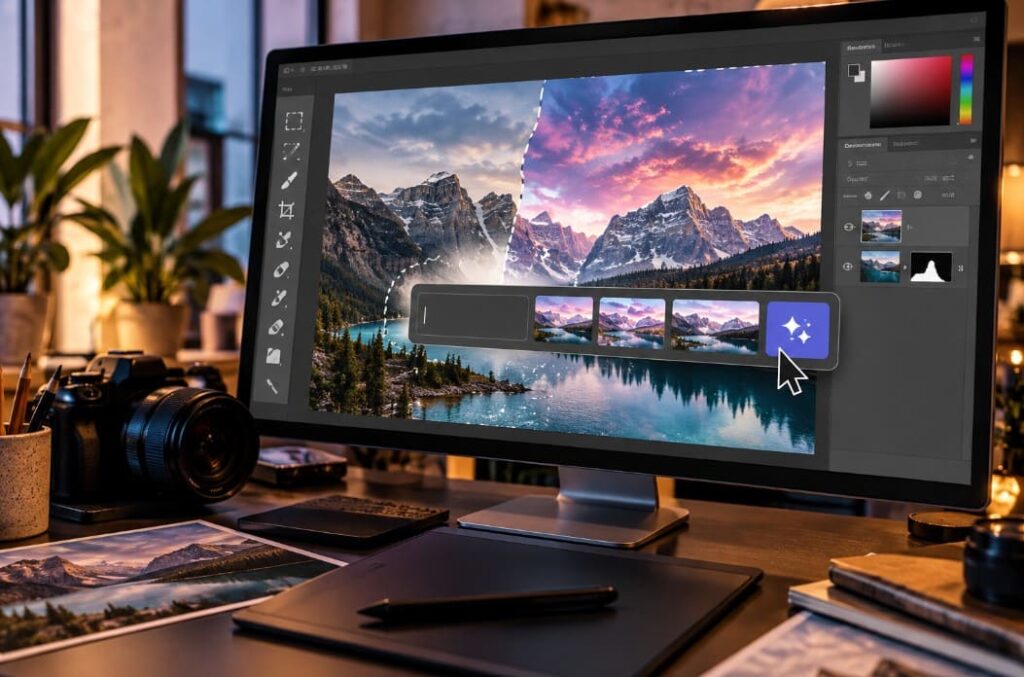
If you’re looking for the generative AI tool in Adobe Photoshop, start with the Contextual Task Bar. This floating toolbar appears when you select part of an image. Once you’ve made a selection with the Lasso or Marquee tool, click Generative Fill to start editing with AI.
You can also access the feature through Edit > Generative Fill in Photoshop’s main menu.
Can’t see the floating toolbar? Open Window > Contextual Task Bar to turn it back on.
Photoshop has several other generative AI tools, and they don’t all appear in the same place. Generative Expand is available when you extend an image using the Crop tool. Generate Image creates pictures from text descriptions. Newer versions of Photoshop also include Prompt to Edit and an AI Assisted Editor mode.
Which option you see depends on your Photoshop version, the tool you’re using, and whether you’ve selected part of the image.
Where to find Generative Fill in Photoshop
Generative Fill lets you add, remove, or replace objects in an image using a written prompt. It works with Adobe Firefly and supported partner AI models.
You can open it in two ways.
Method 1: Use the Contextual Task Bar
For most everyday edits, the Contextual Task Bar is the quickest way to access Generative Fill.
- Open Photoshop and select File > Open to load your image.
- Choose the Lasso Tool, Rectangular Marquee Tool, or another selection tool from the toolbar on the left.
- Draw a selection around the part of the image you want to change.
- Look for the floating Contextual Task Bar near your selection.
- Click Generative Fill.
- Type a description of what you’d like Photoshop to create or change.
- Click Generate.
- Look through the generated variations in the Properties panel.
For example, imagine you have a photo of an empty desk and want to add a coffee cup.
Select the space where the cup should appear, open Generative Fill, and enter:
“White ceramic coffee cup filled with espresso, natural morning light, realistic shadow.”
Photoshop will try to generate the cup while matching the lighting and surroundings of the original photo.
According to Adobe’s Generative Fill documentation, the feature creates content non-destructively. That means you can work with the generated result without directly replacing the original image pixels.
Method 2: Open Generative Fill from the Edit menu
If you don’t like floating toolbars, you can use Photoshop’s main menu instead.
Make a selection around the area you want to edit, then go to:
Edit > Generative Fill
The command opens the same generative editing feature.
If Generative Fill is greyed out, check whether you’ve actually selected part of the image. Also make sure you’re working with a supported layer and document color mode.
The Edit menu is a convenient alternative when you want to keep the canvas clear of floating controls.
Why Generative Fill doesn’t always appear
Photoshop 2026 changes the options in the Contextual Task Bar depending on what you’re doing.
That means you won’t necessarily see Generative Fill every time you open a photo.
For example, Photoshop may show Prompt to Edit when no specific area is selected. Generative Fill usually appears after you select part of the image.
Here’s how the available tools change with the task:
| What you’re doing | AI tool shown | What it does |
|---|---|---|
| Selecting part of an existing image | Generative Fill | Adds, removes, or replaces content inside the selected area |
| Working with an image without an active selection | Prompt to Edit | Makes AI-assisted changes across the image |
| Selecting the entire image | Prompt to Edit | Generates changes affecting the whole image |
| Starting with an empty layer in a new document | Generate Image | Creates an image from a text description |
| Extending the crop boundary beyond the image | Generative Expand | Generates content to fill the additional space |
Adobe explains this behavior in its Prompt to Edit guide.
So, if you open an image and see Prompt to Edit instead of Generative Fill, the feature may simply be responding to your current selection.
Try selecting a smaller area with the Lasso tool. Generative Fill should then become available if your document supports it.
How to find Generative Expand in Photoshop
Generative Expand is part of Photoshop’s cropping workflow.
It lets you extend an image beyond its original edges and asks AI to generate content for the extra space.
This can be helpful when you need to change a photo’s shape without cutting off the subject or stretching the existing pixels.
Say you have a square photograph that needs to fit a wide website banner. Instead of cropping away part of the subject, you could use Generative Expand to add scenery on either side.
How to use Generative Expand
- Open the image you want to extend.
- Choose the Crop Tool from the left toolbar, or press
C. - Drag the crop handles beyond the original image boundaries.
- Find Generative Expand in the Contextual Task Bar.
- Select one of the available AI models.
- Leave the prompt empty if you want Photoshop to continue the existing scene, or enter a description of what to add.
- Click Generate.
- Review the results in the Properties panel and choose the variation you prefer.
For instance, if you’re working with a beach photograph, leaving the prompt blank may allow Photoshop to generate more sand, water, or sky based on the original scene.
You can also give it more direction with a prompt such as:
“Continue the sandy beach with gentle ocean waves.”
Adobe covers these steps and the available model options in its Generative Expand documentation.
Keep in mind that Generative Expand isn’t the same as ordinary resizing.
Resizing changes an image’s pixel dimensions. Generative Expand attempts to create entirely new image content in the space you’ve added.
Where is the Generate Image tool in Photoshop?
If you want to create a picture from scratch rather than edit an existing photograph, look for Generate Image.
Generative Fill works on selected parts of an image. Generate Image uses a text prompt to create new visual content.
How to access Generate Image
- Open Photoshop and select File > New.
- Create a new document.
- Look for Generate Image in the Contextual Task Bar on the empty canvas.
- Click Generate Image.
- Write a prompt describing the picture you want.
- Choose an available Adobe Firefly or partner AI model.
- Click Generate to create image variations.
For example, you could enter:
“Minimalist home office with light oak furniture, large window, soft daylight, realistic interior photography.”
Photoshop will use that description to generate a new image.
Some supported models also let you provide reference images to guide the composition or visual style.
If you’re trying to figure out which Photoshop AI tool you need, think about your starting point.
When you already have an image and want to change part of it, use Generative Fill. If you’re beginning with an empty canvas and a description, Generate Image is the more suitable option.
Where to find AI tools in Photoshop’s AI Assisted Editor
Adobe introduced the AI Assisted Editor (Beta) in August 2026.
This mode gives you a different way to work with Photoshop’s AI features. Instead of relying mainly on traditional selection tools and editing panels, you can describe what you want to change using prompts.
To open it, find the AI Assisted Editor mode toggle near the top-left corner of Photoshop’s workspace.
Some eligible new users may also see an introduction to the mode when they first launch Photoshop.
The AI Assisted Editor includes several options:
- Prompt: Describe the edits you want Photoshop to make.
- Fill: Generate new content in a selected image area.
- Remove: Delete unwanted objects or other image elements.
- Crop and Expand: Adjust the composition and fill space beyond the original image boundaries.
- Upscale: Increase the image resolution with AI processing.
- Remove Background: Separate the main subject from its background.
- Markup: Add visual annotations to show the changes you’re requesting.
You can switch back to the traditional editing workspace by selecting Pro Editor with the same mode toggle.
There is one detail worth knowing before switching modes.
Adobe says that entering AI Assisted Editor creates a flattened copy of your image. When you return to Pro Editor, Photoshop adds the generated changes as a new layer and keeps the original layered document intact.
You don’t have to use this mode. If you prefer Photoshop’s traditional interface, you can hide AI Assisted Editor through the interface preferences.
Adobe provides more information in its AI Assisted Editor FAQ.
How to fix generative AI not showing in Photoshop
If you can’t find Generative Fill, or the button appears but you can’t click it, there are several things to check.
You usually don’t need to reinstall Photoshop immediately. The problem may be related to your selection, document settings, or account.
Check whether the Contextual Task Bar is hidden
Start with the simplest possibility.
In Photoshop’s top menu, select:
Window > Contextual Task Bar
If the option isn’t checked, click it to enable the toolbar.
Then select part of your image using the Lasso or Marquee tool.
Generative Fill should appear when the selection and document settings are supported.
You can also move the Contextual Task Bar or pin it somewhere more convenient if it’s getting in the way of your work.
Check the document’s color mode and bit depth
Some Photoshop document settings aren’t supported by Generative Fill.
Adobe’s troubleshooting advice recommends working with an RGB image using 8 bits per channel.
To check the color mode, go to:
Image > Mode > RGB Color
Then check the bit depth:
Image > Mode > 8 Bits/Channel
If your file currently uses CMYK, 16-bit, or 32-bit settings, it’s sensible to create a working copy before converting it.
Changing color modes or bit depth can affect color information and tonal precision, especially in professional image editing projects.
Make sure you’re using a supported layer
The selected layer can also prevent Generative Fill from working.
Adobe recommends using an unlocked raster layer rather than a text layer, vector shape, or Smart Object.
If you’re working with a Smart Object, you can create a rasterized copy and keep the original.
That gives you a suitable layer for experimenting with Generative Fill without permanently changing the source element.
Update Photoshop through Creative Cloud
If you’re following a recent tutorial but can’t find the same AI options, your Photoshop installation may be outdated.
Open the Adobe Creative Cloud desktop application, find Photoshop, and check for available updates.
Newer releases include tools such as Prompt to Edit and AI Assisted Editor that weren’t available in older versions.
A Photoshop tutorial from 2023 or 2024 may therefore show menus and controls that look different from those in Photoshop 2026.
Check your internet connection, Adobe account, and credits
Photoshop’s cloud-based generative features need to communicate with Adobe’s AI services.
If Generative Fill is visible but nothing happens when you try to generate an image, check your internet connection first.
Next, confirm that you’re signed in to an Adobe account with access to the feature.
Some VPNs, firewalls, and network restrictions can also interfere with Adobe’s services.
It’s worth checking your remaining generative credits through the Account menu or credit usage panel as well.
Adobe’s Generative AI troubleshooting guide covers additional causes and possible fixes.
What can you do with generative AI in Photoshop?
Once you know where the tools are, you can use them for several common editing tasks.
Some are useful for small corrections, while others let you make much larger changes to a photograph.
Add objects to an existing photo
Generative Fill can create new objects directly inside an image, so you don’t need to find and import a separate photograph of each item.
Imagine an interior designer who wants to see how a floor lamp might look next to a sofa.
They can select the empty space beside the sofa, open Generative Fill, and describe the lamp they want.
Photoshop will try to create it while matching the lighting, perspective, and surrounding colors.
You may still need to adjust the result, especially if the object has complicated geometry or must match a specific real-world product.
Remove unwanted objects
Suppose you’ve taken a landscape photo, but there’s a trash bin near the edge of the frame.
Select the bin along with a little of the surrounding area, then open Generative Fill.
You can leave the prompt blank.
Photoshop will attempt to fill the selected area with background content that matches the rest of the photograph.
For simpler distractions, Photoshop’s dedicated Remove tool may be enough.
Generative Fill can be particularly helpful when removing something leaves a large gap that requires new background details.
Extend a photo’s background
Generative Expand can help you adapt one photograph to several different layouts.
For example, you might need a wide horizontal image for a website homepage and a tall version for a social media post.
Instead of stretching the existing photograph, you can extend the canvas and generate content for the new areas.
Just remember that AI-generated details aren’t necessarily accurate.
If you’re extending a photograph of a real building, Photoshop might create windows or architectural elements that don’t exist.
That’s less of an issue for some creative designs, but it matters when the image needs to represent a real place faithfully.
Change the appearance of a scene
Prompt to Edit can make broader changes to an image.
For instance, you could ask Photoshop to transform a daytime photograph into an evening scene or change the weather.
If you only want to alter one part of the picture, Generative Fill gives you more control over the area being modified.
Whichever method you use, inspect the result carefully.
AI edits can leave strange transitions around objects, inconsistent shadows, or reflections that don’t match the rest of the image.
Generative Fill vs. Content-Aware Fill: Which should you use?
Photoshop also has an older feature called Content-Aware Fill.
It’s easy to confuse it with Generative Fill because both can help remove unwanted objects.
The main difference is how they create the replacement content.
Content-Aware Fill reconstructs an area using information already present in the image. Generative Fill uses AI models to generate content that may include details not found in the original photograph.
Here’s a comparison:
| Feature | Generative Fill | Content-Aware Fill |
|---|---|---|
| Main technique | AI-based image generation | Reconstructs areas using existing image information |
| Supports text prompts | Yes | No |
| Can add new objects | Yes | Not designed for this |
| Can remove unwanted objects | Yes | Yes |
| Can create content beyond existing pixels | Yes | Limited to sampled image information |
| Requires internet | Cloud generation generally does | No cloud generation required |
| Uses generative credits | Yes, depending on model and plan | No |
For a small mark on a textured wall, Content-Aware Fill or another standard retouching tool may be all you need.
Generative Fill is more useful when Photoshop needs to create new visual details or when you want to add an object that wasn’t originally there.
Neither feature produces perfect results every time. The best choice depends on the image and the type of edit you’re making.
How many generative AI credits does Photoshop use?
Adobe uses generative credits for many of its AI-powered editing features.
How many credits you spend depends on the feature you’re using, your subscription, and the AI model you select.
As of October 2026, standard Generative Fill operations using eligible Adobe Firefly models generally cost one generative credit per generation.
Some premium features and partner models require more credits.
For example, Photoshop supports selected models from Google and Black Forest Labs alongside Adobe’s own Firefly models. Their credit costs can differ, and availability may depend on your plan or region.
Certain Creative Cloud subscriptions include unlimited standard generations. Others provide a monthly credit allowance.
You can check your available credits through Photoshop’s account controls.
If you’re planning to experiment with a premium model, look at its credit cost before generating multiple variations.
Several attempts using a higher-cost model can consume your allowance much faster than one standard generation.
For current credit requirements, see Adobe’s Creative Cloud generative AI features guide.
Where is generative AI in Photoshop on the web and mobile?
Generative AI isn’t limited to the desktop version of Photoshop.
You can also access supported AI editing features through Photoshop on the web and its mobile application, although the controls are arranged differently.
Photoshop on the web
In Photoshop’s browser-based editor, open an image and select the area you want to change.
For example, choose Select > Lasso and draw around the relevant part of the photo.
Then click Generative Fill in the contextual toolbar, type your prompt, and select Generate.
To extend an image, use Size & Position > Crop.
Drag the crop handles beyond the original image boundaries and choose Generative Expand.
The web interface doesn’t match the desktop version exactly, so instructions referring to desktop menus may not work in the browser.
Photoshop on mobile
Photoshop’s mobile application also supports Generative Fill on compatible devices.
Adobe describes the following process for iPhone:
- Open a photograph in Photoshop.
- Tap Select Area > Lasso.
- Draw a selection around the part of the image you want to edit.
- Confirm the selection.
- Choose Generative Fill.
- Enter your prompt and tap Generate.
- Review the generated variations and apply the result you prefer.
The exact controls may differ depending on your mobile operating system and application version.
Tips for getting better results with Photoshop generative AI
Finding Generative Fill is easy once you know where to look. Getting a convincing result can take a little more work.
The selection you make and the prompt you write both influence what Photoshop generates.
A few habits can help you avoid unnecessary attempts.
Include enough of the surrounding area
When adding an object, don’t select an area that’s too tightly confined.
Leave enough space for Photoshop to create natural edges, shadows, and other details that help the object fit into the scene.
For example, if you’re adding a floor lamp beside a sofa, the selection should allow room for the lamp and its surrounding shadow.
Describe the details that matter
Vague prompts can produce results that don’t match what you had in mind.
Instead of writing “add a chair,” describe the chair’s material, position, and lighting.
A prompt asking for a wooden dining chair viewed from the side, with lighting that matches the room, gives Photoshop more direction.
You don’t need to describe every minor detail, but include the characteristics that are important to the edit.
Try a blank prompt when removing objects
If you want to remove something from a photograph, you don’t always need to write an instruction.
Select the object and some surrounding pixels, open Generative Fill, and leave the prompt empty.
Photoshop can use the surrounding image to determine what might belong in the selected area.
This is often worth trying before writing a more detailed removal prompt.
Look closely at the background and edges
An AI-generated object might look convincing at first glance but have problems elsewhere.
Check its shadows and reflections. Look for repeated textures, unusual proportions, and visible transitions along the selection boundary.
These details can make the difference between an edit that blends into the image and one that looks obviously generated.
Keep your original image
When working on client photographs or commercial images, preserve the original layers or save a separate copy before making major changes.
Generative AI can create attractive results that aren’t factually correct.
For example, an AI-generated product image could contain inaccurate packaging, altered labels, or details that don’t match the real item.
If the photograph is meant to represent a real product or location, check those details before using the finished image.
Frequently asked questions about generative AI in Photoshop
Where is the generative AI tool in Photoshop 2026?
Generative Fill appears in the Contextual Task Bar when you select part of an image. You can also access it through Edit > Generative Fill.
Other AI tools appear in different situations. Generate Image is available when creating content on an empty canvas, while Generative Expand appears when you extend an image using the Crop tool.
How do I turn on Generative Fill in Photoshop?
Open an image and use the Lasso or Marquee tool to select the area you want to edit.
Then click Generative Fill in the Contextual Task Bar.
If you can’t see the toolbar, enable it through Window > Contextual Task Bar.
Your document must use supported settings, and your Adobe account must have access to generative AI features.
Why is the Generative Fill option greyed out?
Generative Fill may be unavailable if you’re using an unsupported document setting or layer.
Common causes include CMYK color mode, 16-bit or 32-bit images, selected Smart Objects instead of unlocked raster layers, or the absence of an active selection.
Problems with account access or available generative credits may also prevent you from using the feature.
Is Generative Fill available in all Photoshop versions?
No. Adobe introduced Generative Fill in 2023, so Photoshop releases from before that time don’t include it.
The interface and supported AI models have changed since its introduction.
Updating through Adobe Creative Cloud gives you access to the current features supported by your installation and account.
Is Photoshop generative AI free?
Generative AI features are available through eligible Photoshop subscriptions and trials, subject to Adobe’s usage and credit rules.
Some plans include unlimited standard generations, while premium models may require additional credits.
Check your subscription details to see which features and allowances are included.
Can I use Generative Fill without selecting anything?
If you want to edit a particular part of an existing image, you generally need to make a partial selection before using Generative Fill.
In newer Photoshop versions, an image without an active selection may show Prompt to Edit instead.
That feature allows you to request changes affecting the entire picture.
What is the shortcut for Generative Fill in Photoshop?
Photoshop doesn’t depend on one universal default keyboard shortcut for Generative Fill.
The usual method is to select part of an image and click Generative Fill in the Contextual Task Bar or choose it from the Edit menu.
If you prefer keyboard shortcuts, check Photoshop’s shortcut settings for available customization options.
Is Generative Fill the same as Adobe Firefly?
No. Adobe Firefly is a family of generative AI models and creative services.
Generative Fill is a feature inside Photoshop that uses Firefly or supported partner models to create image content within a selected area.
Firefly provides the underlying AI technology, while Generative Fill is one of the ways you can use that technology in Photoshop.
Can I use generative AI in Photoshop offline?
Cloud-based features such as Generative Fill generally require an internet connection because the generation process uses Adobe’s online AI services.
Photoshop also has certain tools that use AI processing directly on your device.
Those local features shouldn’t be confused with cloud-based generative image editing.