The Best Fluffy Pancakes recipe you will fall in love with. Full of tips and tricks to help you make the best pancakes.



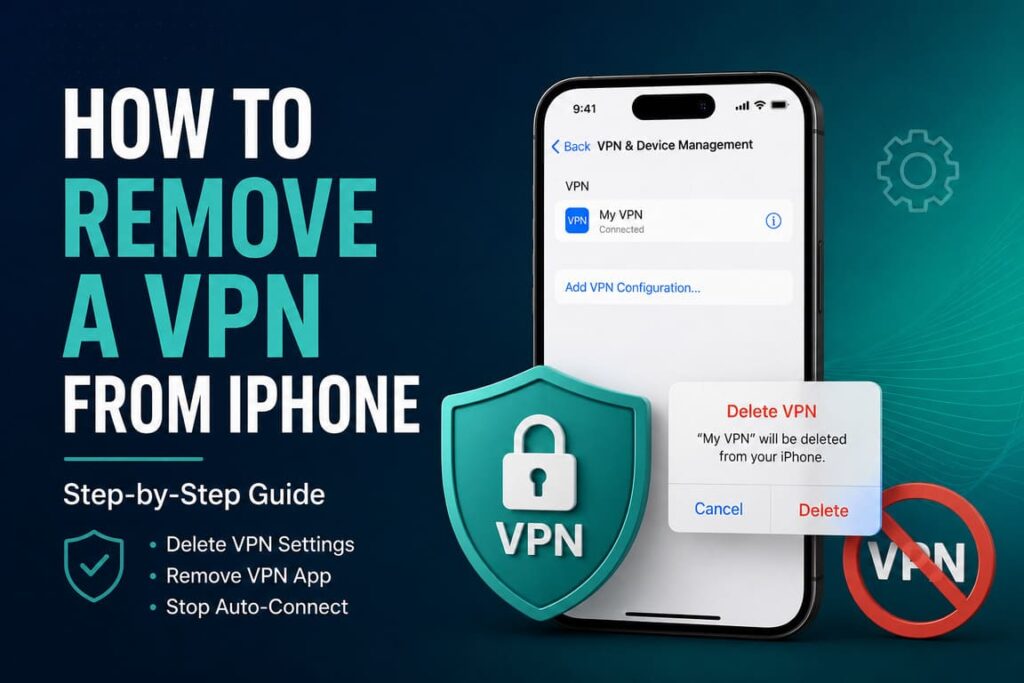
If you want to remove a VPN from your iPhone, the job is usually simple. In most cases, you need to do two things: delete the VPN connection in iPhone settings and, if needed, remove the VPN app itself. If the VPN was installed by a school or company, the process may be different because the VPN can be tied to a management profile. Apple notes that deleting a profile also deletes the settings, apps, and data linked to that profile.
Quick Answer
To remove a VPN from an iPhone, go to Settings > General > VPN & Device Management > VPN, tap the info icon (i) next to the VPN, then tap Delete VPN. If the VPN still appears or reconnects, turn off Connect On Demand first, then delete the VPN. If you installed a VPN app, also delete the app from your Home Screen.
When You Should Remove a VPN
You may want to remove a VPN from your iPhone if:
- the VPN keeps reconnecting by itself
- your internet is slower than usual
- banking, streaming, or local apps do not work correctly
- you no longer use that VPN service
- the VPN came from an old work or school profile
- you want to troubleshoot battery drain or connection issues
Table 1: The Fastest Way to Remove VPN on iPhone
| Situation | What to do | Best path |
|---|---|---|
| You just want to disconnect for now | Turn VPN off | Settings > VPN or Settings > General > VPN & Device Management > VPN |
| You want to remove the saved VPN connection | Delete the VPN configuration | Settings > General > VPN & Device Management > VPN > (i) > Delete VPN |
| You installed a VPN app and want it gone | Delete the app too | Long-press app > Remove App > Delete App |
| VPN came from work or school | Check device/profile management | Settings > General > VPN & Device Management |
| VPN keeps coming back | Turn off auto-connect first | Open the VPN details and disable Connect On Demand before deleting |
Source note: Apple explains profile removal and device management behavior, while NordVPN explains the delete path and the role of Connect On Demand. Source
Step-by-Step: How to Remove VPN From iPhone
Method 1: Delete the VPN in Settings
This is the main method for most users.
- Open Settings
- Tap General
- Tap VPN & Device Management
- Tap VPN
- Tap the info icon (i) next to the VPN profile
- Tap Delete VPN
- Confirm the removal
If you do not see a VPN listed there, it may already be removed, or it may be part of a configuration profile instead of a normal app-based VPN. Apple says that if you do not see any profiles under VPN & Device Management, then no device management profiles are installed on the iPhone.
Method 2: Remove a Work or School VPN Profile
If your VPN was added by a school, business, or mobile device management system, it may live inside a configuration profile.
- Open Settings
- Go to General > VPN & Device Management
- Look for a profile you recognize
- Tap the profile
- Tap Delete Profile
- Follow the on-screen steps
- Restart your iPhone
Apple warns that deleting a profile removes all settings and information connected to it. If that profile gave access to a school or company VPN, the VPN will no longer connect after removal. Apple also advises users to check with their system administrator before deleting a profile on a managed device.
Method 3: Delete the VPN App
In many cases, deleting the VPN connection is enough. But if you no longer want the service at all, remove the app too.
- Find the VPN app on your Home Screen
- Long-press the app icon
- Tap Remove App
- Tap Delete App
- Confirm
Why the VPN Sometimes Stays on
A common reason is Connect On Demand. This setting tells the iPhone to reconnect the VPN automatically when the phone goes online. So even if you switch the VPN off once, it may come back.
To stop that:
- Go to Settings > General > VPN & Device Management > VPN
- Tap the info icon (i) next to the VPN
- Turn off Connect On Demand
- Then tap Delete VPN if you want full removal
Another reason is device supervision. Apple says Always On VPN can be installed on supervised devices, and it stays active across restarts until the profile is uninstalled. That is why some work phones do not let users fully remove the VPN by themselves.
How It Works
A VPN on iPhone creates a secure tunnel between your device and a VPN server. Apple supports standard VPN technologies such as IKEv2, L2TP over IPsec, and Cisco IPsec, and app makers can also build custom VPN solutions through Apple’s Network Extension framework. In simple terms, your internet traffic goes through the VPN instead of going directly to the website or service. Apple Support
When you remove a VPN, you are usually removing either:
- a VPN configuration saved in iPhone settings, or
- a configuration profile that contains VPN settings, or
- the VPN app that created and manages the connection.
That is why uninstalling the app alone does not always solve the problem. The saved VPN profile can remain on the phone until you delete it manually in settings.
Real Examples
Example 1: Removing a personal VPN app
Emma used a commercial VPN on her iPhone during travel. Later, some local shopping apps stopped loading correctly. She opened Settings > General > VPN & Device Management > VPN, tapped the i button, and deleted the VPN. Then she removed the VPN app from the Home Screen. That fully removed both the connection and the app. This matches the flow described by NordVPN and Surfshark support.
Example 2: Old school profile
David finished a university program, but his iPhone still showed a VPN. The VPN was not from an app. It was part of a profile under VPN & Device Management. He deleted the profile, restarted the phone, and the VPN disappeared. Apple specifically says that removing a profile deletes the settings tied to it.
Example 3: VPN keeps turning itself back on
Lena turned her VPN off, but it kept reconnecting every time she switched from Wi‑Fi to mobile data. The reason was Connect On Demand. After disabling that option in the VPN details, she was able to remove the VPN normally.
Statistics: Why VPN Settings Matter on Mobile
Public VPN research shows that mobile VPN use is common, which is one reason many people run into saved VPN profiles on their phones. Security.org reports that 32% of mobile users use their VPN daily or almost daily, and 61% use it at least once a week. The same roundup also says 52% of respondents used VPNs on iOS devices, compared with 37% on Android. These numbers help explain why iPhone VPN setup, troubleshooting, and removal are now everyday tasks for many users. Source
Quick stats list
- 32% of mobile users use VPNs daily or almost daily
- 61% of mobile users use VPNs at least weekly
- 52% of surveyed VPN users reported using iOS devices
- 37% reported using Android devices
Text Infographic
REMOVE VPN FROM IPHONE
│
├─ 1) Need it off only for now?
│   └─ Turn VPN off in Settings
│
├─ 2) Need it gone completely?
│   └─ Settings > General > VPN & Device Management > VPN > (i) > Delete VPN
│
├─ 3) Still showing up?
│   └─ Turn off “Connect On Demand”
│
├─ 4) Came from work or school?
│   └─ Delete the configuration profile if allowed
│
└─ 5) No longer use the service?
    └─ Delete the VPN app too
Based on: Apple’s profile guidance and provider instructions for deleting VPN connections and apps.
Table 2: Common Problems and Fixes
| Problem | Likely reason | Practical fix |
|---|---|---|
| VPN reconnects by itself | Connect On Demand is enabled | Open VPN details, turn it off, then delete VPN |
| VPN option is still visible after app deletion | The VPN profile is still saved in iPhone settings | Delete the VPN configuration manually |
| You cannot remove the VPN | It may be managed by a work or school profile | Check VPN & Device Management and contact admin if needed |
| Internet apps stop working correctly with VPN | Region, DNS, or network routing conflict | Turn off or remove the VPN and test again |
| VPN survives restarts | Managed Always On VPN may be active | The profile must be uninstalled; user control may be limited |
Source note: These fixes align with Apple’s explanations of configuration profiles, supervised devices, and Always On VPN, plus provider guidance on auto-reconnect behavior.
Best Professional Tips
- Delete the VPN profile first, then the app. This avoids leftover settings.
- Check for management profiles. If the VPN came from work or school, deleting the app alone will not help.
- Turn off auto-reconnect settings before troubleshooting. Otherwise the VPN may keep coming back.
- Restart your iPhone after removing a profile. Apple includes restart as part of its profile-removal guidance.
- Do not remove a business profile blindly. It may affect access to email, internal apps, or company networks.
FAQ
Does deleting the VPN app remove the VPN completely?
Not always. The app may be gone, but the VPN configuration can stay in iPhone settings. If that happens, delete the VPN manually in Settings > General > VPN & Device Management > VPN.
Why does my iPhone still show VPN after I deleted the app?
Because the saved VPN profile may still exist. Some VPNs install a separate configuration that remains until you remove it in settings.
Can I remove a VPN from a work iPhone?
Maybe, but not always. Apple says some profiles are installed by organizations, and deleting them may require permission or admin help. On supervised devices, Always On VPN can stay active until its profile is uninstalled.
Is it safe to remove a VPN?
Yes, if it is your own VPN and you no longer need it. But if the VPN came from work, school, or a security policy, removing it may break access to internal services. Apple recommends checking with the administrator in that case.
What if there is no “Delete VPN” button?
The VPN may be controlled by a configuration profile or device management setup. Go to Settings > General > VPN & Device Management and check whether a profile is installed.
Will removing a VPN improve battery or speed?
It can, depending on the VPN and your network conditions. Some users remove VPNs to troubleshoot slow speeds, app issues, or battery drain, especially when the VPN reconnects automatically.
Final Takeaway
Removing a VPN from an iPhone is usually easy once you know where it was installed from. If it is a normal VPN connection, delete it in VPN & Device Management. If it came from work or school, remove the profile only if you are allowed to. If the VPN keeps turning on, disable Connect On Demand first. And if you want a full cleanup, delete both the VPN configuration and the app. That is the cleanest way to remove VPN from iPhone without confusion.