The Best Fluffy Pancakes recipe you will fall in love with. Full of tips and tricks to help you make the best pancakes.



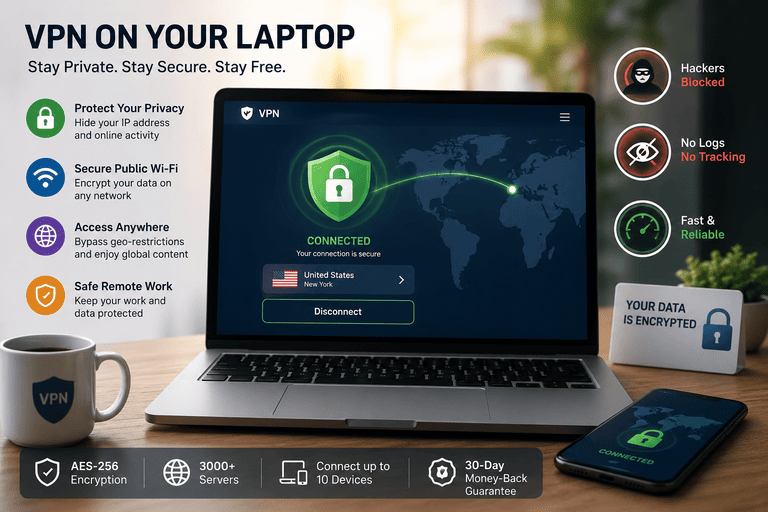
A VPN (Virtual Private Network) is one of the simplest tools you can install on your laptop to protect your privacy, secure public Wi-Fi connections, and access content that might be blocked in your region. The good news? You don’t need to be a tech expert to use one. This guide walks you through everything in plain English.
What a VPN Actually Does
When you connect to the internet without a VPN, your traffic travels directly from your laptop to the websites you visit. Your internet provider, network administrators, and even hackers on public Wi-Fi can potentially see what you’re doing.
A VPN creates an encrypted tunnel between your laptop and a remote server. Your traffic goes through that tunnel first, hiding your real IP address and scrambling your data so no one in the middle can read it.
Why Use a VPN on a Laptop
Laptops are the devices most likely to connect to risky networks — coffee shops, airports, hotels, co-working spaces. That mobility is exactly why a VPN matters more on a laptop than on a desktop sitting at home.
Key benefits include:
- Privacy on public Wi-Fi — encrypts your traffic so nobody on the same network can snoop
- Hiding your IP address — websites see the VPN server’s location instead of yours
- Bypassing geo-restrictions — access streaming libraries, news sites, or services blocked in your region
- Safer remote work — protect company data when working outside the office
- Avoiding bandwidth throttling — some ISPs slow down streaming or gaming traffic
Quick Stats on VPN Usage in 2026
- Roughly 1.6 billion people worldwide use a VPN — about 31% of all internet users
- 39% of VPN users connect primarily from a laptop
- Public Wi-Fi attacks have grown by an estimated 40% year-over-year
- The global VPN market is projected to reach $107 billion by 2027
- 72% of remote workers say their employer requires or recommends a VPN
Step-by-Step: How to Set Up a VPN on Your Laptop
The process is nearly identical on Windows, macOS, and Linux. Here’s the universal flow:
- Choose a reputable VPN provider. Look for a no-logs policy, strong encryption (AES-256), a kill switch, and servers in countries you care about.
- Sign up and pay. Annual plans are typically 60–70% cheaper than monthly ones.
- Download the official app from the provider’s website. Avoid third-party download mirrors.
- Install the app like any other program. On Windows you may need to allow it through User Account Control; on macOS you’ll approve a system extension.
- Log in with your account credentials.
- Pick a server location. Choose one close to you for best speed, or one in a specific country to unblock content.
- Click Connect. Within a few seconds you should see a confirmation that the tunnel is active.
- Verify the connection by visiting a site like ipleak.net or whatismyipaddress.com — your IP should reflect the server’s country, not your real location.
- Turn on the kill switch in settings so your traffic is blocked if the VPN drops.
- Enable auto-connect on startup, especially if you travel often.
Built-In VPN vs. Third-Party Apps
Most laptops let you set up a VPN manually through the operating system, but a third-party app is far more convenient.
| Feature | OS Built-In VPN Client | Third-Party VPN App |
|---|---|---|
| Setup difficulty | Manual config required | One-click install |
| Server choice | One server at a time | Hundreds to thousands |
| Encryption protocols | Limited (IKEv2, L2TP) | WireGuard, OpenVPN, proprietary |
| Kill switch | Rarely included | Standard feature |
| Speed optimization | None | Smart server selection |
| Streaming support | Usually fails | Optimized servers |
| Best for | Corporate/work networks | Personal privacy & streaming |
| Typical cost | Free (with VPN credentials) | $3–$13 per month |
Choosing the Right VPN Provider
Not all VPNs are created equal. Free VPNs often log your data and sell it — defeating the whole purpose. When evaluating a provider, check for:
- No-logs policy that has been independently audited
- Modern protocols like WireGuard or OpenVPN
- Kill switch and DNS leak protection
- At least 30+ server countries
- Simultaneous connections (so the same subscription covers your phone and laptop)
- A clear refund policy, usually 30 days
Top names that consistently score well in independent reviews include NordVPN, ExpressVPN, Surfshark, Proton VPN, and Mullvad.
Common Mistakes to Avoid
- Downloading “free” or cracked VPNs from random websites
- Forgetting to turn on the kill switch
- Using the VPN only when you “feel” you need it — make it always-on for sensitive tasks
- Connecting to a server on the other side of the world when speed matters
- Ignoring updates — VPN apps patch security flaws often
Infographic: Your Laptop VPN Workflow
┌────────────────────────────────────────────────────────────────┐
│              HOW A LAPTOP VPN PROTECTS YOU                     │
├────────────────────────────────────────────────────────────────┤
│                                                                │
│   [💻 Your Laptop]                                             │
│         │                                                      │
│         │  1. You open the VPN app & click Connect             │
│         ▼                                                      │
│   [🔒 Encrypted Tunnel] ── AES-256 / WireGuard                 │
│         │                                                      │
│         │  2. Traffic is scrambled so ISPs/hackers see noise   │
│         ▼                                                      │
│   [🌍 VPN Server in Country X]                                 │
│         │                                                      │
│         │  3. Your IP is replaced with the server's IP         │
│         ▼                                                      │
│   [🌐 The Open Internet]                                       │
│                                                                │
│   Result:  ✅ Private  ✅ Encrypted  ✅ Geo-flexible          │
│                                                                │
└────────────────────────────────────────────────────────────────┘
Pro Tips for Power Users
- Split tunneling lets you route only certain apps through the VPN — useful when banking sites block VPN traffic.
- Multi-hop connections chain two VPN servers for extra anonymity, at the cost of speed.
- Dedicated IP addresses prevent constant CAPTCHAs and let you whitelist your IP for work tools.
- Obfuscation modes disguise VPN traffic as regular HTTPS — essential in countries that restrict VPN use.
FAQ
Is using a VPN on a laptop legal? In most countries, yes. A handful of nations including China, Russia, Iran, and the UAE restrict or regulate VPN use. Always check local laws before traveling.
Will a VPN slow down my laptop? Slightly. Expect a 5–20% speed reduction with a good provider. Picking a nearby server and using the WireGuard protocol minimizes the impact.
Can I use one VPN subscription on multiple devices? Most providers allow 5–10 simultaneous connections, which is enough to cover a laptop, phone, tablet, and smart TV.
Do I need a VPN at home? If your home Wi-Fi is password-protected and you trust your ISP, a VPN is less critical at home. It still helps with privacy from your ISP and unblocking content.
Are free VPNs safe? Most aren’t. They often log your activity, inject ads, or limit speeds. If budget is tight, look at the free tiers of Proton VPN or Windscribe — both are reputable.
What’s better: WireGuard or OpenVPN? WireGuard is faster and uses modern cryptography. OpenVPN is older but battle-tested and works on more networks. Most apps now default to WireGuard.
Can a VPN protect me from viruses? No. A VPN encrypts traffic but doesn’t scan for malware. You still need antivirus software.
Why does Netflix sometimes block my VPN? Streaming services actively detect and block known VPN IPs. Premium providers rotate IPs to stay ahead — try switching to a different server or one labeled “streaming optimized.”
Should I leave my VPN on all the time? For privacy and security, yes — especially on a laptop you carry around. Turn it off only if a specific service refuses to work with it.
How do I uninstall a VPN if I no longer want it? Use the standard uninstaller in Windows Settings or drag the app to Trash on macOS. Then remove any leftover network adapters in your system’s network settings.
Final Thoughts
Setting up a VPN on a laptop takes about five minutes and pays off every time you connect to an unfamiliar network. Pick a trustworthy provider, install the official app, turn on the kill switch, and let it run in the background. That’s really all there is to it — a small habit that quietly protects your data every day.