The Best Fluffy Pancakes recipe you will fall in love with. Full of tips and tricks to help you make the best pancakes.



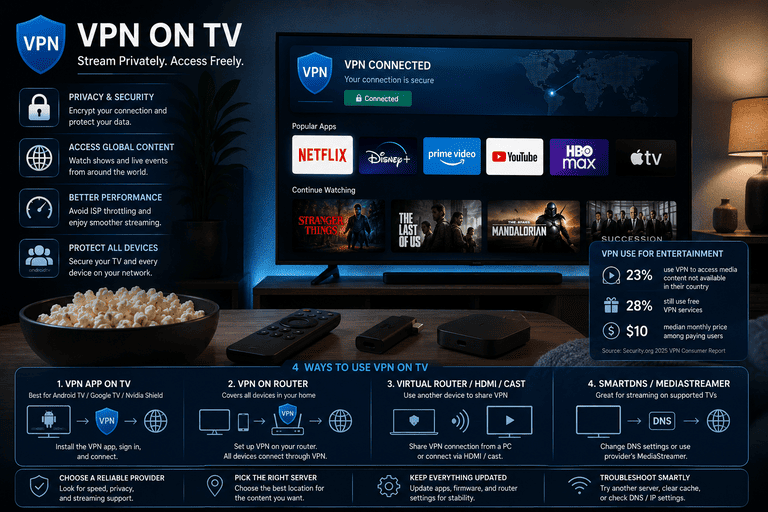
Using a VPN on a TV depends mostly on what kind of TV or TV platform you have. If your device runs Android TV, Google TV, Nvidia Shield, or another Android-based TV system, you can usually install a VPN app directly from the app store. If your TV does not support VPN apps, the most practical alternatives are setting up the VPN on your router, using a computer as a virtual router, or connecting a VPN-enabled device to the TV with HDMI, casting, or screen mirroring. Some providers also offer TV-focused alternatives such as SmartDNS or MediaStreamer for compatible setups. Source:
Streaming-related stats
VPN use for entertainment is common, but it is only one part of the bigger VPN market. Security.org reports that 23% of VPN users use a VPN to access media content not available in their country, 28% still use free VPN services, and among users who pay, the median monthly price is $10. Those numbers are useful when you decide whether a casual free option is enough or whether a paid subscription makes more sense for regular streaming on a TV.
Why people use a VPN on a TV
A TV VPN setup is usually about one of three things: privacy, network security, or content access flexibility. Some people simply want their streaming device covered by the same VPN they use on phones and laptops. Others want a setup that protects the whole home network, especially when multiple smart TVs, streaming boxes, and consoles are involved. And for many users, the biggest priority is getting a setup that is stable, easy to maintain, and does not require constant reconnection before every movie or live event.
How to tell whether your TV supports a VPN app
The fastest way to check is to look at your TV’s operating system. If it runs Android TV or Google TV, you can often install a VPN app directly from Google Play. Devices such as Nvidia Shield also fall into this category and are among the easiest TV platforms for VPN use. By contrast, many smart TVs that use their own systems, such as certain Samsung or other non-Android platforms, usually need a router-based or shared-connection workaround instead of direct app installation.
Method 1: Install a VPN app directly on the TV
This is the best method when your TV platform supports VPN apps natively, because it is the simplest to set up and the easiest to manage day to day. On supported Android TV devices, providers such as NordVPN and ExpressVPN let you install the app, sign in, and connect without touching your router or another device.
Steps
- Open the Google Play Store on your TV.
- Search for your VPN provider.
- Install the app.
- Open it and sign in.
- Connect to the server you want.
On Android TV, ExpressVPN says you can sign in with a QR code, an email link/code, or a password/activation code. NordVPN similarly supports TV-friendly login with a QR code or remote validation on another device, which makes setup much easier than typing long passwords with a TV remote.
Why native TV apps are usually best
A native TV app is usually the cleanest option because you can control the VPN directly on the screen you are using. Provider apps may also include useful features such as Quick Connect, auto-connect, protocol selection, custom DNS, local network discovery settings, split tunneling, or built-in filtering and protection tools depending on the app. Those extras can help with stability, login convenience, and compatibility with streaming or home-network devices.
Method 2: Use a VPN router
If your TV cannot install VPN apps directly, a VPN router is usually the best long-term solution. In this setup, you configure the VPN on the router instead of the TV. Then the TV connects to that router over Wi‑Fi or Ethernet, and the VPN coverage happens at the network level instead of the app level. This is one of the main approaches recommended by both NordVPN and ExpressVPN for smart TVs and devices that do not support native VPN apps.
Router setup in simple terms
- Set up the VPN on your compatible router.
- Connect your TV to that router.
- Use the TV normally while the VPN runs in the background.
The biggest advantage of router setup is that it can cover multiple devices at once, not just the TV. That makes it especially attractive if you have more than one streaming device, a game console, or several people in the house who want a shared VPN connection without signing in on every device individually.
When a router VPN makes the most sense
Router VPNs make the most sense when your TV runs a limited operating system, when you want a permanent “set it and forget it” solution, or when your household includes devices like Roku, Chromecast, smart TVs without VPN app support, or consoles that cannot run a VPN client on their own.
Method 3: Use a computer as a virtual router or connect a VPN-enabled device
If you do not want to touch your router, you can still use a VPN on a TV by routing traffic through another device. ExpressVPN explicitly lists two common workarounds: using a computer as a virtual router or connecting a VPN-enabled device to the TV. NordVPN also describes sharing a VPN connection from a Windows PC, either wirelessly or through Ethernet.
Common versions of this setup
You can do this in a few ways:
- connect a laptop with a VPN to the TV by HDMI,
- use a Windows PC as a virtual router or hotspot,
- share a VPN connection over Ethernet,
- or cast/mirror content from a VPN-connected device to the TV.
This is a good option if you only need a TV VPN occasionally and do not want to reconfigure your entire home network. It is less elegant than a native app or router setup, but it can work well for temporary use.
Method 4: Use SmartDNS or similar TV-friendly alternatives
Some providers offer alternatives designed specifically for devices that are awkward to configure with a full VPN app. NordVPN lists SmartDNS as an option for supported TV platforms, and ExpressVPN lists MediaStreamer as one of its main big-screen TV methods. These options can be useful when your goal is getting a compatible TV setup without installing a traditional VPN app directly on the television.
Which method should you choose?
If your TV supports Android TV or Google TV apps, the native app is usually the easiest and best option. If your TV cannot run VPN apps but you want a clean permanent solution, use a VPN router. If you only need the VPN from time to time, use a virtual router, shared PC connection, or a connected VPN-enabled device. And if your provider offers TV-specific tools like SmartDNS or MediaStreamer, those are worth considering when direct installation is not practical.
Expanded TV VPN setup table
| TV type | Best VPN method | Difficulty | Best for | Notes |
|---|---|---|---|---|
| Android TV / Google TV | Native VPN app | Easy | Most users | Fastest setup through Google Play |
| Nvidia Shield | Native VPN app | Easy | Streaming and privacy | Strong support from VPN providers |
| Smart TV without VPN apps | Router VPN | Medium | Whole-home coverage | Good long-term option |
| TV with HDMI laptop/device | VPN on connected device | Medium | Occasional use | Flexible but less seamless |
| TV with no easy VPN support | Virtual router / shared connection | Medium-High | Temporary workaround | Useful if you already have a laptop |
| Compatible provider ecosystem | SmartDNS / MediaStreamer | Medium | Alternative TV setup path | Useful when direct app install is not practical |
Supported direct-install methods are generally best on Android TV-based systems, while router and connected-device methods are better when the TV itself cannot run a VPN app.
Best practices for using a VPN on TV
If your platform supports it, start with the native TV app because it is the least complicated setup. Use a nearby server for better speed and more stable video playback. If your Wi‑Fi is inconsistent, use Ethernet where possible. And if your provider’s TV app supports settings like auto-connect or Quick Connect, enable them so the TV is ready before you start streaming.
It is also smart to test your setup before movie night, a live sports event, or a family watch party. TV setups tend to fail at the most annoying moment, especially when the app was not used recently, the router rebooted, or the sign-in session expired. A two-minute test run can save a lot of frustration.
Performance and usability tips
Changing the VPN protocol can sometimes improve speed or fix connectivity issues. ExpressVPN says protocol changes may help resolve performance problems, and NordVPN’s Android TV app also offers protocol switching in settings. If a streaming app is unstable, trying another server or another protocol is often one of the quickest troubleshooting steps.
If your TV app supports custom DNS, local network discovery, or split tunneling, these settings may help in homes where the TV also needs to talk to local devices such as media servers, printers, or other smart-home equipment. Not every user needs these options, but they are worth knowing about if your setup is more advanced than simple app-based streaming.
Troubleshooting tips
If something is not working, start with the basics: restart the TV, restart the VPN app, and try a different server. If the app supports protocol changes, try a different protocol. If Wi‑Fi is unstable, switch to Ethernet. These are simple steps, but they solve many common TV VPN problems.
If QR code login or remote sign-in fails, try again from a second device or clear the app session and relaunch it. If the VPN app is not available in the TV app store, use router setup, SmartDNS/MediaStreamer, or a shared-connection workaround instead. In many cases, the issue is not that the VPN service is unsupported, but simply that the TV platform is too limited to run the app directly.
A quick note on free VPNs
You can use a free VPN on a TV, and Security.org says 28% of VPN users still do. But if your main goal is a smoother and more reliable TV setup, many people end up preferring paid options simply because TV streaming usually demands consistency more than casual mobile browsing does. Security.org also reports that the median monthly price among paying VPN users is about $10, which gives you a rough benchmark for what regular users actually spend.
Responsible use
If you use a VPN on a TV, make sure you do so in line with your provider’s terms, the streaming platform’s rules, and applicable law. NordVPN explicitly notes that its service should not be used to bypass copyright regulations. That is worth keeping in mind when writing consumer-facing guidance on TV VPNs.
FAQ
Can every smart TV run a VPN app?
No. Some TVs, especially Android TV-based devices, can run VPN apps directly. Many others cannot, which is why router-based, shared-PC, or connected-device methods remain important.
What is the easiest way to use a VPN on TV?
If your TV supports Android TV or Google TV apps, installing the VPN app directly is usually the easiest method. If not, a VPN router is the cleanest fallback.
Can I use a free VPN on my TV?
Yes, but free VPNs are not always the best fit for a TV setup. Security.org says 28% of users rely on free VPNs, but many TV users prefer a paid service for a more predictable experience.
What if my TV does not have a VPN app store?
Use a router VPN, SmartDNS/MediaStreamer, a virtual router, or connect a VPN-enabled laptop or streaming device to the TV instead.
Can I log in to a TV VPN app without typing my password on the remote?
Usually yes. Both NordVPN and ExpressVPN describe TV-friendly login methods such as QR code sign-in, remote validation, activation codes, or email-based authentication.
What if the VPN works but streaming is slow?
Try a closer server, switch protocols, or move the TV to Ethernet if possible. Provider setup guides specifically mention protocol controls and app settings that can help with speed or connectivity problems.