The Best Fluffy Pancakes recipe you will fall in love with. Full of tips and tricks to help you make the best pancakes.



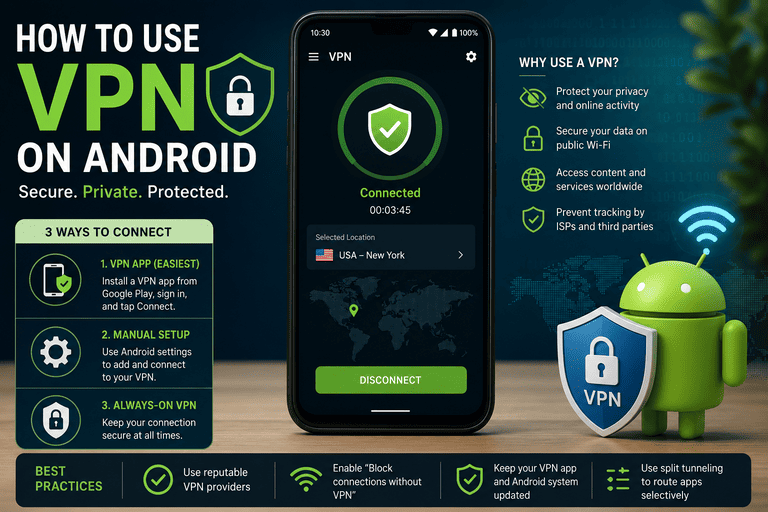
Using a VPN on Android is usually quick: install your VPN provider’s app, sign in, and tap Connect. For most people, that’s the easiest and most reliable setup. Android also includes a built-in VPN menu for manual connections, which is especially useful if your employer, school, or IT admin gives you a server address, account name, and other connection details. On supported devices and profiles, Android also offers stronger controls such as Always-on VPN and Block connections without VPN, which help keep traffic protected at all times.
Quick stats
VPN use is no longer limited to tech-heavy users or remote employees. In Security.org’s 2025 consumer report, 60% of VPN users said they use VPNs for general privacy, 57% for general security, 37% to use public Wi‑Fi more securely, and 25% for greater security when online shopping. Those numbers show that everyday privacy and safer internet use are now the biggest reasons people turn on a VPN. Security.org
What a VPN does on Android
A VPN creates an encrypted connection between your Android device and a VPN server. In practice, that helps protect your traffic from local network snooping, reduces exposure on public Wi‑Fi, and can make it harder for third parties to monitor your browsing activity. It does not make you completely anonymous, and it does not automatically protect you from phishing, malware, or unsafe apps. Think of it as one layer of protection, not a complete security system.
The fastest method: use a VPN app
For most Android users, a provider app is the best choice because it avoids manual setup and usually includes useful extras such as auto-connect, server recommendations, protocol selection, split tunneling, kill-switch-style behavior, or reconnect logic when your network changes. Android supports VPN apps on modern devices, and Google’s admin guidance specifically notes that apps are often needed when the built-in client does not support the required protocol or when easier deployment is needed.
Steps
- Open Google Play.
- Install your VPN provider’s Android app.
- Sign in.
- Tap Connect.
- Choose a nearby server for better speed, or select a specific country if you need content or services from that region.
If you mainly want privacy for normal browsing, streaming, or public Wi‑Fi, a nearby server is usually the best default because shorter geographic distance often means lower latency and better speed. If you need access to region-specific content or work resources, choose the location your provider or admin recommends. Source – Google Admin Help
Manual method: connect through Android settings
Manual setup is most common for work, school, or enterprise VPNs. Android’s built-in VPN menu lets you connect using saved VPN entries when you already have the required connection details. Google notes that some people may still need a VPN app first, depending on how the VPN is configured. Google Help
Steps
- Open Settings.
- Tap Network & internet.
- Tap VPN.
- Select the VPN you want to use.
- Enter your username and password.
- Tap Connect.
Google also notes that menu locations can vary by device. If you do not immediately see the VPN section, search Settings for “VPN.” On some phones, the path may be slightly different depending on the manufacturer’s Android skin.
When manual setup makes sense
Manual setup is useful when your IT department gives you exact connection details, when you are using a school or corporate network, or when you want to avoid installing an extra consumer VPN app. It can also be useful in managed Android environments where VPN settings, certificates, and app behavior are controlled centrally through enterprise management tools.
Advanced method: turn on Always-on VPN
If your Android version and VPN setup support it, Always-on VPN is one of the best settings to enable. According to Google, Android can start the VPN when the device boots and keep it running while the device or work profile is on. Google says this feature is available on Android 7.0 and later.
Steps
- Open Settings.
- Go to Network & internet > VPN.
- Tap the settings icon next to your VPN.
- Turn on Always-on VPN.
- If available, enable Block connections without VPN.
This setup is especially useful for people who travel often, use hotel or café Wi‑Fi, handle work data on mobile, or simply want to reduce the risk of traffic leaks if the VPN disconnects unexpectedly.
What “Block connections without VPN” means
This option is Android’s strongest built-in protection for VPN traffic. When enabled, the device blocks network connections that do not go through the VPN. In other words, if the VPN is down, apps should not quietly fall back to the normal internet connection. That can be very valuable on work devices or in higher-risk environments.
Per-app VPN and split tunneling
Android VPN behavior can be more flexible than simply “all traffic on” or “all traffic off.” Google’s admin documentation explains that many VPN apps can use allowed lists or disallowed lists to decide which apps send traffic through the VPN. That means you may be able to protect work apps through the VPN while leaving some personal apps on the normal connection, or do the reverse.
This is often called per-app VPN or split tunneling in commercial VPN apps. It can be useful when banking apps, smart-home apps, printers, or local-network services do not behave well over a VPN. It is also common in enterprise setups where only approved work apps are required to use the secure tunnel.
Android VPN setup table
| Option | Best for | Difficulty | Main benefit | Best use case |
|---|---|---|---|---|
| VPN provider app | Most users | Easy | Quick setup and extra features | Daily privacy, travel, public Wi‑Fi |
| Built-in Android VPN | Work or school VPN | Medium | Manual connection without a full consumer app in some cases | Admin-provided settings |
| Always-on VPN | Security-focused users | Medium | Continuous protection | Work devices, commuting, public hotspots |
| Per-app VPN | Advanced users and IT teams | Advanced | Route only selected apps through VPN | Mixed work/personal traffic |
Android supports both built-in VPN clients and app-based VPNs, while advanced controls such as Always-on VPN, blocked non-VPN traffic, and app-level routing depend on Android version, device policy, and app support.
How to choose the right setup
If you are a typical personal user, install a reputable VPN app and use auto-connect or Always-on features if the app supports them. If your company or school gave you setup instructions, use the method they recommend, because enterprise VPNs often rely on certificates, management tools, and app rules that are easier to enforce through a managed configuration. If you use a work profile, your administrator may also apply VPN behavior only to work apps instead of the whole device.
Best practices for Android VPN use
Choose a reputable provider instead of a random free VPN app with unclear logging practices. Use a nearby server for everyday browsing if speed matters. Turn on Always-on VPN or the provider’s auto-connect feature if you frequently use public Wi‑Fi. After switching between Wi‑Fi and mobile data, confirm that the VPN has reconnected properly. Also remember that some banking, fraud-prevention, and workplace apps may flag VPN traffic and require you to temporarily disconnect or switch servers. Google’s documentation also makes clear that enterprise environments may restrict what users can change in VPN settings.
Troubleshooting Android VPN issues
If your VPN stops working, start with the basics: disconnect and reconnect, switch to another server, update the VPN app, and restart the phone. If you have old or unused VPN entries in Android settings, remove them to avoid conflicts. If you are using a managed work profile, the issue may not be local to your phone at all — your company may control certificates, routing, or which apps are allowed to use the VPN. In that case, the IT admin’s configuration may be the real source of the problem.
Common problems and what they usually mean
If the VPN connects but some apps stop loading, the issue may be app-level incompatibility, DNS handling, or a per-app routing rule. If the VPN drops whenever the phone changes networks, look for auto-reconnect, Always-on VPN, or battery-optimization settings that may be interfering with background activity. If the VPN option is missing from Settings, the menu may be stored in a different section by the phone manufacturer, or the device may expect you to install a VPN app first. Google specifically recommends searching Settings for VPN if you cannot find the menu right away.
FAQ
Do I need a separate VPN app on Android?
Not always. Android has a built-in VPN menu, but many people still need or prefer a provider app because it makes setup easier and may support protocols, management options, or app controls that the built-in menu does not handle as well.
What is Always-on VPN on Android?
It is a feature that can start the VPN automatically and keep it running while the device or work profile is on. Google says it is available on Android 7.0 and later.
Can I choose which apps use the VPN?
Yes, many VPN apps support per-app VPN behavior through allowed or disallowed app lists. Availability depends on the VPN app, Android version, and whether the device is managed by an organization.
Why can’t I find the VPN menu on my phone?
Because Android menu layouts can vary by device maker. Google recommends searching your Settings app for VPN if you do not see it immediately.
Is a VPN enough to keep my Android phone secure?
No. A VPN protects network traffic, but it does not replace safe browsing, app vetting, strong passwords, passkeys, two-factor authentication, or Android system updates. A VPN is useful, but it should be only one part of your overall mobile security setup.
Should I use a VPN all the time?
If you regularly use public Wi‑Fi, travel, work remotely, or want persistent privacy protection, using a VPN full-time can make sense. If you only need it occasionally, such as for airport Wi‑Fi or country-specific access, an on-demand approach may be enough. Always-on VPN is the better choice when you want less risk of accidental unprotected traffic.
Final takeaway
For most Android users, the best VPN setup is simple: install a trusted provider app, sign in, and connect. If you have work or school credentials, the built-in Android VPN menu may be the right path. If security matters more than convenience, enable Always-on VPN and Block connections without VPN wherever supported. Android gives you a flexible mix of consumer-friendly and enterprise-grade VPN options — the best one depends on whether you care most about convenience, work access, or continuous protection.